
Table of Contents
CS Workshop: Job Scheduling Software (SLURM)
Welcome! This workshop is to familiarize new users with resources available that are under the CS department's job scheduler. This workshop is not comprehensive and is designed for a quick introduction into SLURM resources that are available to CS accounts.
After finishing this page, please be sure visit our (wiki page about SLURM) to learn more and view available resources.
0: CS Job Scheduler - SLURM
The CS department utilizes the software SLURM to control access to most compute resources in the CS environment.

0.1: How SLURM Works
SLURM manages and allocates access to compute resources (CPU cores, memory, GPUs, etc.) through a sophisticated job scheduling system.
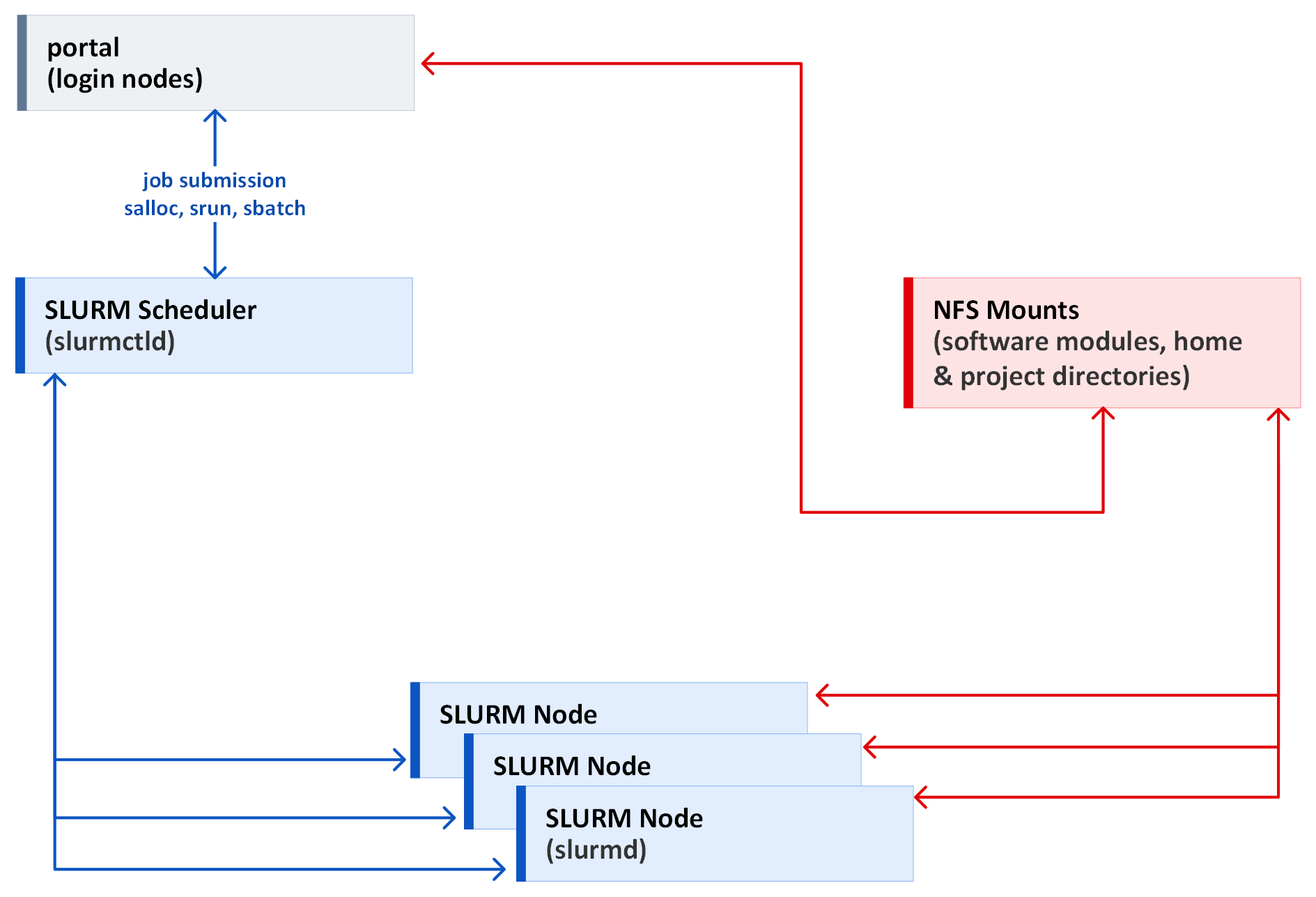
The portal and NoMachine Remote Linux Desktop clusters are connected to the SLURM Job Scheduler, which is connected with SLURM compute nodes.
From the login clusters, you are able to request specific resources in the form of a SLURM job. When the scheduler detects a server that has those specified resources is or will be available, the scheduler will assign your job to the respective compute node (server).
These jobs can be either interactive, i.e. a terminal is opened, or non-interactive. In either case, your job will run commands on a compute node using allocated resources as you would in your terminal.
For example, you can request to allocate an A100 or H100 GPU, along with a certain number of CPU cores, and a certain amount of CPU memory to run a program or train a model.
0.2: Terminology & Important General Information
- Servers managed by the slurm scheduler are referred to as nodes, slurm nodes, or compute nodes
- A collection of nodes controlled by the slurm scheduler is referred to as a cluster
- tasks in slurm can be considered as individual processes
- CPUs in slurm can be considered as individual cores on a processor
- For a job that allocates a single CPU, it is a single process program within a single task
- For a job that allocates multiple CPUs on the same node, it is a multicore program within a single task
- For a job that allocates CPU(s) and multiple nodes (distributed program), then a task will be run on each node
- GPUs in slurm are referred to as a Generic Resource (GRES)
- Using a specific GRES requires specifying the string associated to the GRES
- For example, using
--gres=gpu:1or--gpus=1will allocate the first available GPU, regardless of type - Using
#SBATCH --gres=gpu:1with--constraint="a100_40gb"will require that an A100 GPU with 40GBs be used for your job
- SSH login to slurm nodes is disabled. Interactive jobs are required for accessing a terminal
- Allocated resources are ONLY accessible to your job. In other words, even though a server has 200 cores, if your job allocates 20 cores, then only your job will have access to utilize those 20 cores. Other jobs will allocate from the remaining 180 cores on the system. The same principle applies to all resources (CPU cores, CPU memory, GPUs, etc.). All allocated resources for your job cannot be accessed or used by another job running on the same node
1: How to Use SLURM
1.1: Viewing Available Resources
The best way to view available resources is to visit our wiki page on (SLURM Compute Resources).
Using this information, you can submit a job that requests specific amounts of resources or specalized hardware (such as specific GPUs) to be allocated to your job.
1.2: Common Job Options
Here are a few of the most common job options that are needed for submitting a job.
Be sure to check our main wiki page for full details about these options and others (SLURM Common Job Options).
-J or --job-name=<jobname>                The name of your job

-n <n> or --ntasks=<n>                    Number of tasks to run

-p <partname> or --partition=<partname>   Submit a job to a specified partition

-c <n> or --cpus-per-task=<n>             Number of cores to allocate per process,
                                          primarily for multithreaded jobs,
                                          default is one core per process/task

--mem=<n>                                 System memory required for each node specified in MBs

-t D-HH:MM:SS or --time=D-HH:MM:SS        Maximum WALL clock time for a job

-C <features> or --constraint=<features>  Specify unique resource requirements such as specific GPUs

--mail-type=<type>                        Specify the job state that should generate an email.

--mail-user=<computingID>@virginia.edu    Specify the recipient virginia email address for email
                                          notifications
                                          (all other domains such as 'gmail.com' are ignored)
- Note, for the
--constraint=<features>option, available features are listed in the Features column on the (SLURM Compute Resources page)
- Note, a partition must always be specified
1.2: Submitting an Interactive CPU Job
Submitting an interactive job requires two steps.
First, request an allocation of resources, and second, run a command on the allocation, i.e. start a terminal.
The following example submits a job requesting an allocation of resources from the cpu partition, namely for one node with two CPU cores, 4GBs of CPU memory, and a time limit of 30 minutes.
Once the scheduler detects a node with these resources available, an allocation is granted
userid@portal01~$ salloc -p cpu -c 2 --mem=4000 -J InteractiveJob -t 30
salloc: Granted job allocation 12345
Then, a BASH shell (or terminal) is initialized within the allocation, which opens a terminal on the allocated node
userid@portal01~$ srun --pty bash -i -l --
userid@node01~$ echo "Hello from $(hostname)!"
Hello from from node01!
Notice that the hostname (i.e. the server you're on) changes from portal01 to node01.
Be sure to fully exit and relinquish the interactive job allocation when you have finished, which requires entering the command exit twice
userid@node01~$ exit
logout
userid@portal01~$ exit
exit
salloc: Relinquishing job allocation 12345

userid@portal01~$
1.2: Submitting an Interactive GPU Job
The following requests to allocate the first available GPU, regardless of type
userid@portal01~$ salloc -p gpu --gres=gpu:1 -c 2 --mem=4000 -J InteractiveJob -t 30
salloc: Granted job allocation 12345

userid@portal01~$ srun --pty bash -i -l --
userid@gpunode01~$ nvidia-smi -L
GPU 0: NVIDIA GeForce GTX 1080 (UUID: GPU-75a60714-6650-dea8-5b2f-fa3041799070)
Be sure to fully exit and relinquish the interactive job allocation when you have finished
userid@gpunode01~$ exit
logout
userid@portal01~$ exit
exit
salloc: Relinquishing job allocation 12345

userid@portal01~$
1.3: Submitting a Non-Interactive Job
Submitting a non-interactive job allows for queuing a job without waiting for it to begin (i.e. run jobs asynchronously). This is done using SBATCH Scripts, which function similarly to salloc.
Firstly, create a file to be an SBATCH script
~$ nano/vim my_sbatch_script
Inside the file, add the necessary resource requirements for your job using the prefix #SBATCH to each job option.
The following requests the first available GPU, regardless of type, along with the default number of CPU cores (which is 2), 16GBs of CPU memory, and a time limit of 4 hours. Then the python script, my_python_script.py will be executed after loading the required modules.
#!/bin/bash

#SBATCH --gres=gpu:1
#SBATCH --mem=16000
#SBATCH -n 1
#SBATCH -t 04:00:00
#SBATCH -p gpu
#SBATCH --mail-type=begin,end
#SBATCH --mail-user=<computingID>@virginia.edu

module purge
module load gcc python cuda

python3 my_python_script.py
Then to submit the SBATCH job script
~$ sbatch my_sbatch_script
Submitted batch job 12345
After the SBATCH job completes, output information is printed to a single file, which by default will be named slurm-%A_%a.out where %A is the jobid and %a is the array index (for job arrays). By default this output file will be found in the directory that the sbatch command is executed in.
Using the above example, the file slurm-12345.out would be generated in the current working directory, showing any output from the Python script my_python_script.py
1.4: Viewing Job Status
To view all jobs that you have queued or running
~$ squeue -u $USER
             JOBID PARTITION     NAME     USER ST       TIME  NODES NODELIST(REASON)
             12345       cpu    myjob   userid R       52:01      1 node01
             12346       cpu    myjob   userid R       52:01      1 node01
             12347       cpu    myjob   userid PD      00:00      1 (Priority)
To view all of your jobs that are running, include --state=running
~$ squeue -u $USER --state=running
             JOBID PARTITION     NAME     USER ST       TIME  NODES NODELIST(REASON)
             12345       cpu    myjob   userid R       52:01      1 node01
             12346       cpu    myjob   userid R       52:01      1 node01
1.5: Canceling Jobs
To cancel a job, run the following command, providing a JobID which can be obtained from squeue
~$ scancel <jobid>
2: Software Modules & SLURM
As shown in the diagram, software modules along with storage are connected to SLURM compute nodes.
This means that after submitting a job and being allocated resources, you can load and use modules as you normally would when logged into portal for example.
2.1: Interactive Job with Modules
The following example highlights module usage for an interactive job
userid@portal01~$ salloc -p cpu -c 2 --mem=4000 -J InteractiveJob -t 30
salloc: Granted job allocation 12345

userid@portal01~$ srun --pty bash -i -l --
userid@node01~$ module purge
userid@node01~$ module load gcc python
userid@node01~$ python3
>>> print("Hello, world!")
Hello, world!
>>>
2.2: SBATCH Job with Modules
Similarly, an SBATCH script can use modules in the same way that would be done when logged in via SSH, and can run a program
#!/bin/bash

#SBATCH ...
#SBATCH ...

module purge
module load gcc python

python3 hello_world.py
2.3: Jupyter Notebooks
A Jupyter notebook can be opened within a SLURM job.
Note, you MUST be on-grounds using eduroam wifi or running a UVA VPN to access the URL.
Interactive Job
To open a Jupyter notebook during an interactive session, firstly load the miniforge module
~$ module load miniforge
Then, run the following command, and find the URL output to access the Jupyter instance
~$ jupyter notebook --no-browser --ip=$(hostname -A)

... output omitted ...
Or copy and paste one of these URLs:
        http://hostname.cs.Virginia.EDU:8888/tree?token=12345689abcdefg
Copy and paste the generated URL into your browser.
SBATCH Job
Another option is to attach a Jupyter notebook to resources allocated via an SBATCH script.
Note, once you are finished, you must run ~$ scancel <jobid>, using the assigned <jobid>, to free the allocated resources
The following SBATCH is used as an example, you will need to modify depending on the resource requirements of your job. Enabling email notifications is recommended
#!/bin/bash

#SBATCH -n 1
#SBATCH -t 00:30:00
#SBATCH -p cpu
#SBATCH --mail-type=begin
#SBATCH --mail-user=<userid>@virginia.edu

module purge
module load miniforge
jupyter notebook --no-browser --ip=$(hostname -A) > ~/slurm_jupyter_info 2>&1
Using the above SBATCH script, submit the job and wait until the resources are allocated
~$ sbatch sbatch_jupyter_example
You will receive an email when your job starts (if email notifications are enabled), or you can check your queue
~$ squeue -u $USER
             JOBID PARTITION     NAME      USER  ST       TIME  NODES NODELIST(REASON)
             12345       cpu sbatch_j   <userid>  R       0:04      1 <node name>
Once your job has started running, i.e. has a state of R, then output the notebook connection info, and copy/paste the generated URL into your browser
~$ cat ~/slurm_jupyter_info
... output omitted ...
Or copy and paste one of these URLs:
        http://hostname.cs.Virginia.EDU:8888/tree?token=12345689abcdefg
Note, once you are finished, you must run ~$ scancel <jobid>, using the assigned <jobid>, to free the allocated resources
~$ scancel 12345
3: Best Practices
Here are a few general tips and recommendations for using the CS SLURM cluster.
- Be sure to specify a time limit for your job. Estimating a job runtime can be tricky, however specifying a time limit less than the maximum (when possible) may help your job to be allocated resources sooner
- Before loading any modules, be sure to unload ALL modules with
~$ module purgecommand at the start of your job
- Use interactive jobs to build an SBATCH script when possible. SBATCH scripts run commands as you do in your interactive job. You can copy and paste commands from your interactive job into an SBATCH script, and the SBATCH script will run them identically to the interactive job. The benefit is that the SBATCH script/job will run asynchronously when resources become available, rather than waiting until your interactive job is allocated resources
- Check that you haven't left a job running and cancel any unused jobs with scancel. Unused allocated resources are unavailable to other jobs until relinquished, which wastes resources and electricity